List Views
The CMF provides two additional views for visualizing the data in Pimcore backend UI.
Customer View
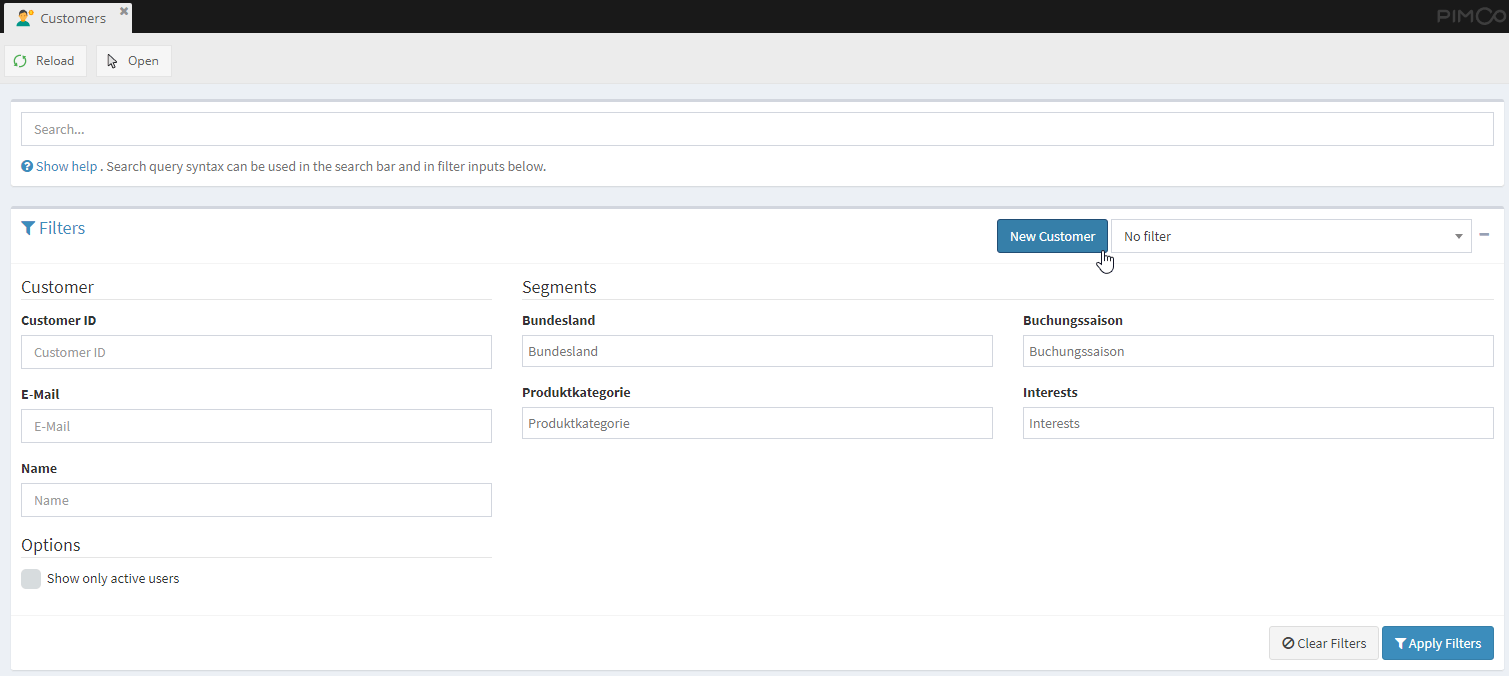
The customer view is a list view of customers with additional filter and export functionality and few configuration possibilities. It can be opened via the main menu in Pimcore backend UI and lists all customers that are matching the filter criteria independently of their location in the object tree. Although users will only see customers which they have the permission to access.
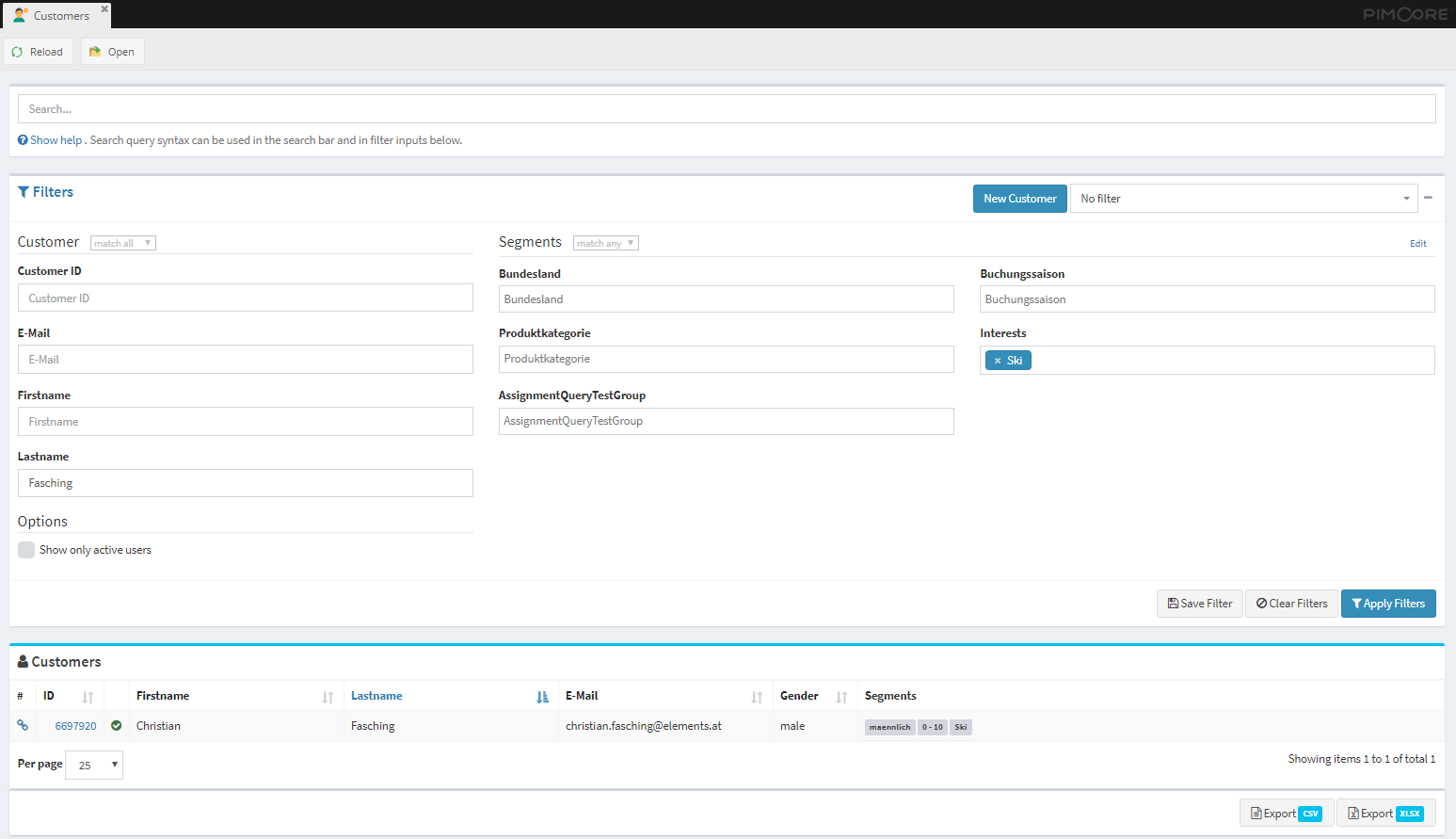

There are "Customer" filters and "Segments" filters. It is possible to choose between "or" (match any) and "and" (match all) conditions. Please note that the condition between customer and segments filters is always "and".
The list can be sorted by clicking on the column headers.
Configuration options
-
Search Columns: In CMF configuration it can be configured which columns should be considered during searching and filtering in the customer list. For details see the CMF configuration section.
-
Filter for Segments: The customer view also allows for filtering based on assigned segments. This can be configured based on the
CustomerSegmentGroupobjects by activating theShow as Filteroption. The sort order of the segments can be changed by providing theFilter sort order(high to low sorting).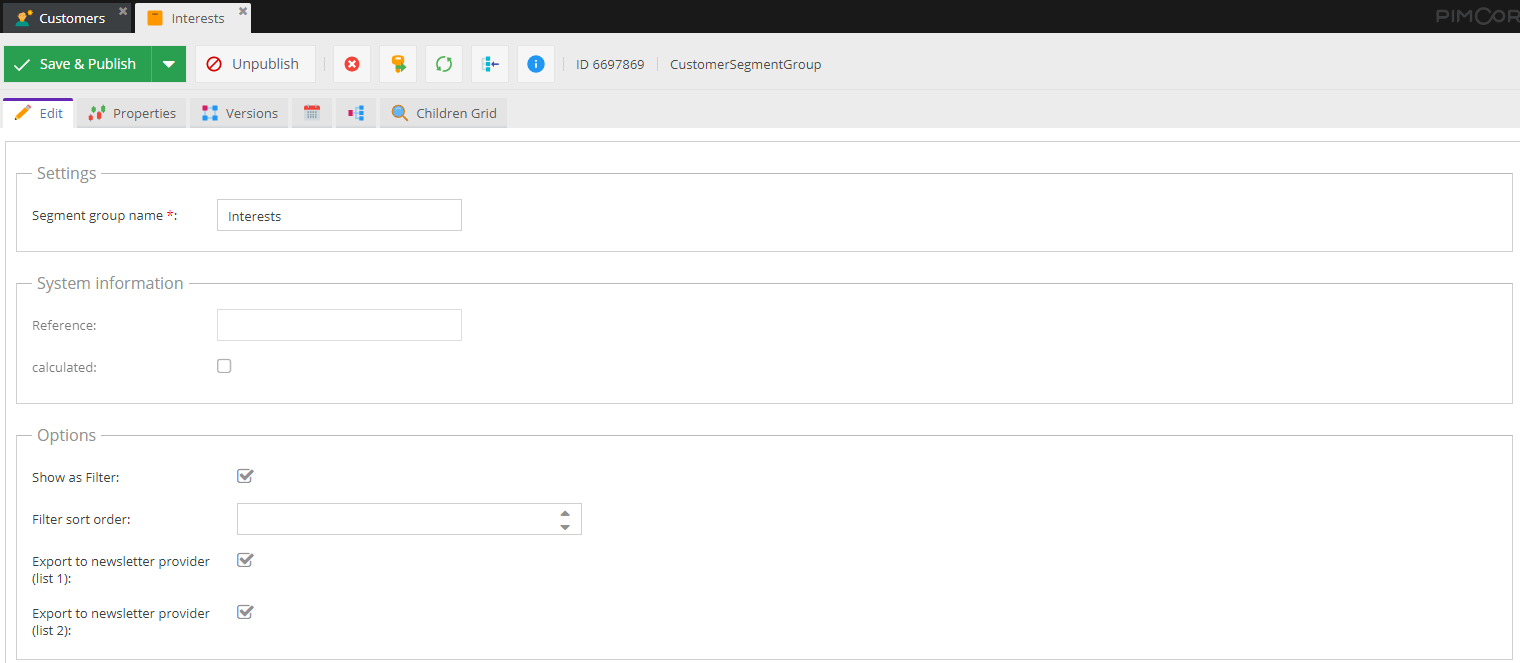
-
Exporters: It is possible to configure exports for exporting all customers that are currently shown in the customer view.

These exports can be configured in CMF configuration by configuring
name,icon, aexporterclass and certainpropertiesthat need to be exported. Theexporterclass is a php class that defines the export format of the export. Currently there are implementations forcsvandxlsxavailable.It is possible to configure multiple exporters. For details see the CMF configuration section.

In addition to the global customer view, in CustomerSegment objects edit view, an additional tab with customers that
have assigned the segment is added:
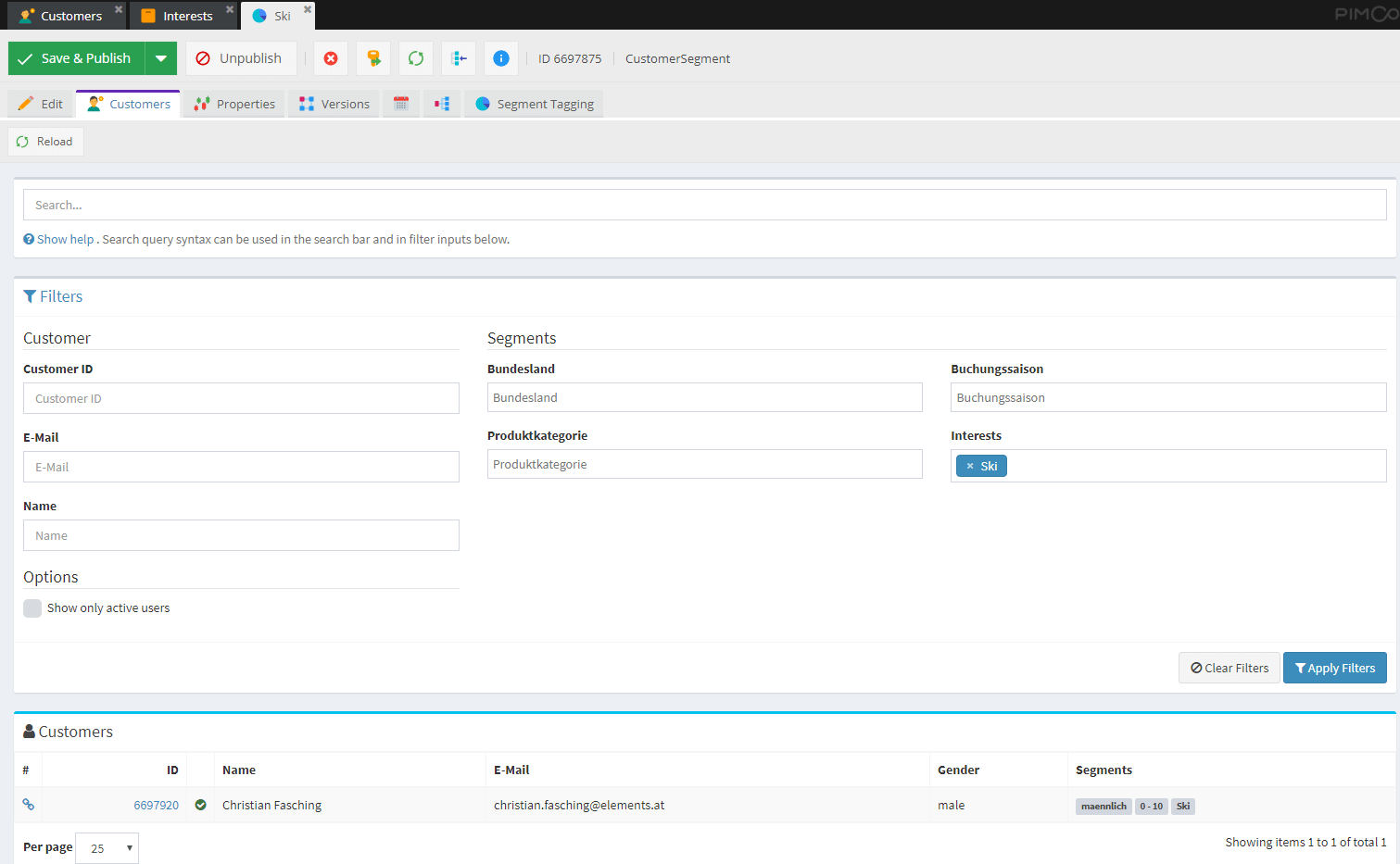

Additional filter settings will be hidden when viewing customers of a segment directly.
When selecting a customer in the list, the detail view of this customer is opened. By default this detail view is a very
basic view that shows all attributes of the customer. Optionally, a custom view can be provided by overwriting the
cmf.customer_view service in symfony container and overwriting the public function getDetailviewTemplate(CustomerInterface $customer)
method, that returns the path to the template of the customer (by default @PimcoreCustomerManagementFramework/admin/customers/partials/detail.html.php).
In the same service, also the presentation of a customer in the customer listing can be customized. Just overwrite the
public function getOverviewTemplate(CustomerInterface $customer) method and return the path to the custom template.
Advanced Filter Settings
For reuse of defined filters, it is possible to save a configured filter. The advanced filter setting are
only available when accessing the customer view via the menu and will be hidden when viewing customers of a specific segment.
Every user can add new filters and update their existing filters. If an user has the permission CMF Customer Filter-Admin he is also able to
update all filters shared with them. For sharing filters with other users the user needs to have the permission Share configurations.
User with the Share configurations permission can share their own filters or re-shared filters shared with them to other users.
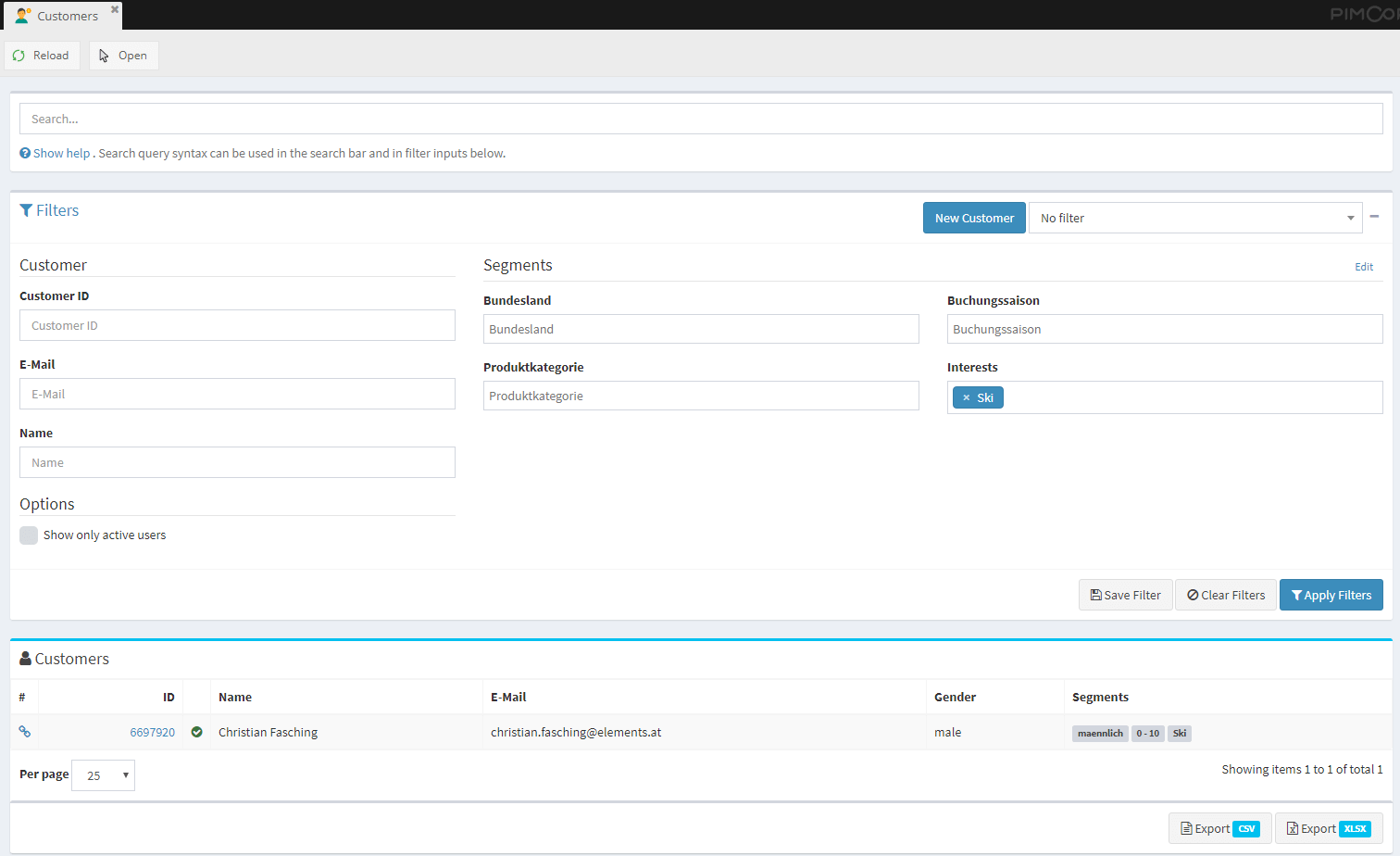

The available segments can be changed via the Edit Button in the segments area of the filters section.
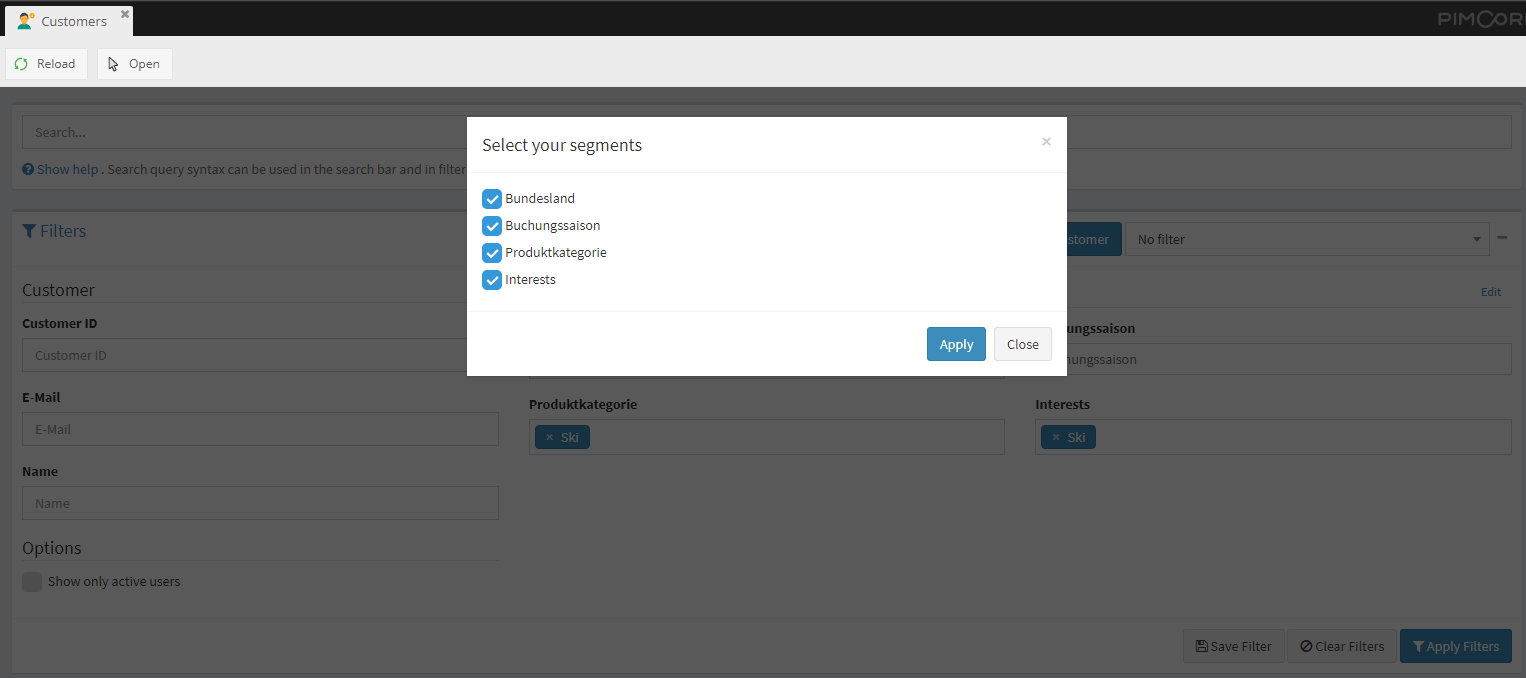

Creating new filters
All Users will have the possibility to select, save and update their defined filters by defining filter criteria for
customer fields in the Customer section and select segments in the Segments section.
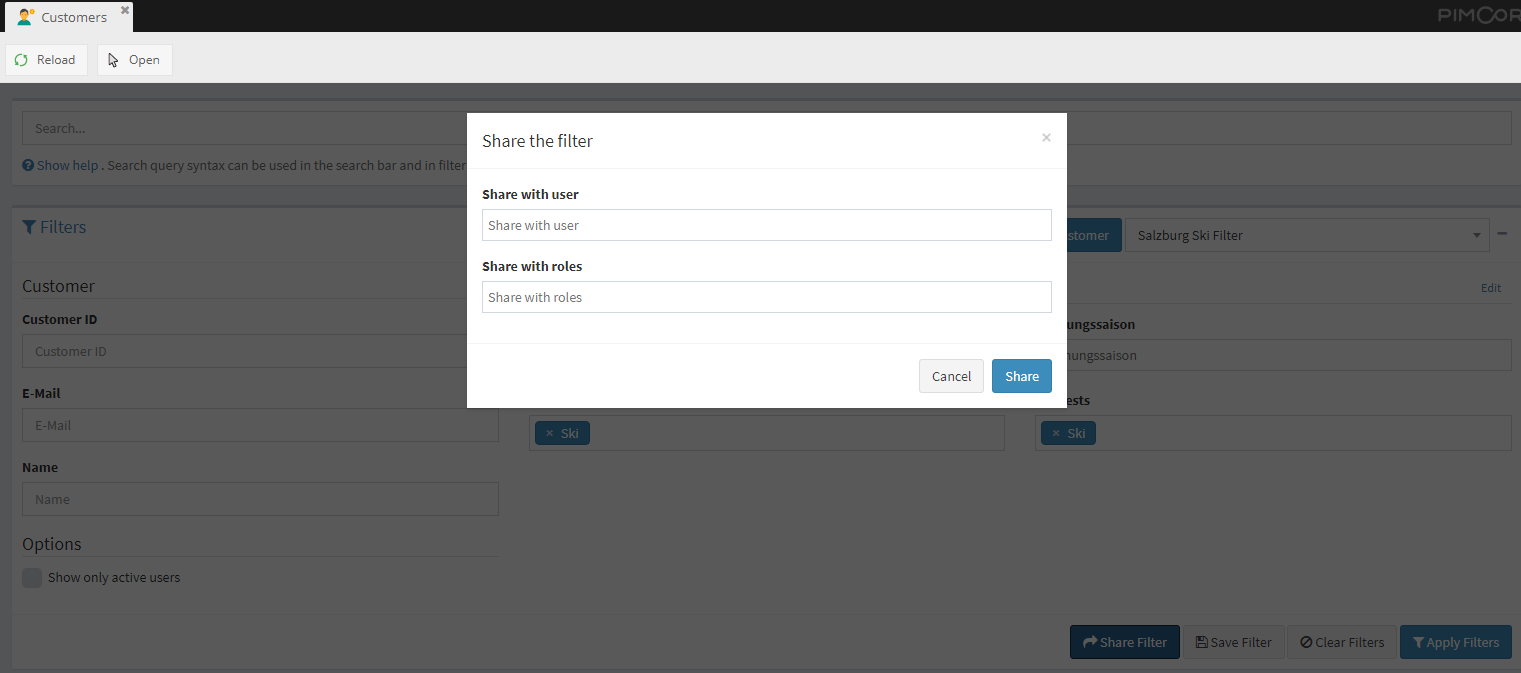
By clicking the Save Filter button a new dialog will be opened. In this dialog the filter can also be shared with users
and roles if the user has the permission Share configurations.

If the defined filter criteria should not be changed it is possible to lock the filter fields by setting the Read Only option.
When the filter should be available directly via the menu (for the user itself and all shared users / roles) the option Shortcut Available should be set.
By saving the filter it will be automatically selected in filter selection. When editing an existing filter an additional
button will be available in the Save & Share Filter or Save Filter dialog to update the specific filter definition.
Sharing filters
Users can access filters shared with them either via the customers menu and by selecting the filter or directly via the menu
if the Shortcut Available option was set for the filter.

Users can re-share their shared filters when they have the Share configurations permission by clicking the Share Filter
button and providing users or roles, but they are not allowed to remove existing users or roles from the filter definition.
Only users with permission CMF Customer Filter-Admin or filter owners them self will have the possibility to remove
existing shares via updating the filter definition.

Creating new customer object
For quickly adding new customers a button is available inside the Filters section beside the filter selection. This button is
only available if the user has save permission to temporary new customer directory set in CMF configuration
key pimcore_customer_management_framework -> customer_provider -> newCustomersTempDir. By clicking the New Customer button a
new customer will be created (and opened) inside the defined directory. When the automatic naming scheme is enabled, the customer will be moved to the corresponding directory after clicking the save button.

Activity View
The activity view provides a overview of all activities of a certain customer and is shown as additional tab in the customer object editor.
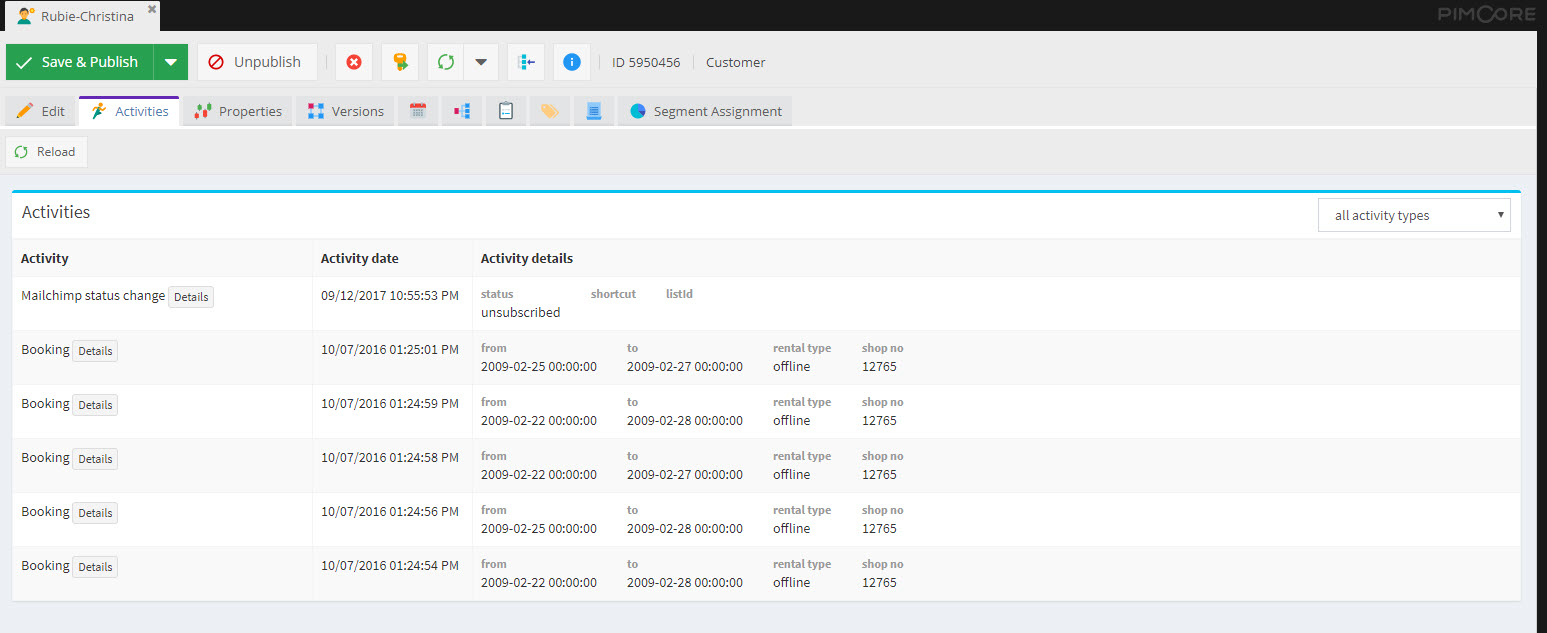

For each activity also a detail page is available.
Configuration options
- Activity details in list view: The information of an activity shown in the activity list is defined by the activity
implementation with the method
public static function cmfGetOverviewData(ActivityStoreEntryInterface $entry). It should return an associative array of all data that should be shown. - Activity Detail Page: There are two ways of configuring the content of the activity detail page.
- Implement the method
public static function cmfGetDetailviewData(ActivityStoreEntryInterface $entry);which should return an associative array of all data. This data is shown in a two-column list by default. - Implement the method
public static function cmfGetDetailviewTemplate(ActivityStoreEntryInterface $entry);which can return the path to a template file in order to implement a complete custom template.
- Implement the method