Block Editable
General
The block element is an iterating component which is really powerful. Basically a block is only a loop, but you can use other editables within this loop, so it's possible to repeat a set of editables to create structured content (eg. a link list, or an image gallery). The items in the loop as well as their order can be defined by the editor with the block controls provided in the editmode.
Configuration
| Name | Type | Description |
|---|---|---|
limit | integer | Max. amount of iterations. |
reload | bool | Reload editmode on add, move or remove (default=false) |
default | integer | If block is empty, this specifies the iterations at startup. |
manual | bool | Forces the manual mode, which enables a complete custom HTML implementation for blocks, for example using <table> elements |
class | string | A CSS class that is added to the surrounding container of this element in editmode |
Methods
| Name | Return | Description |
|---|---|---|
isEmpty() | bool | Whether the editable is empty or not. |
getCount() | int | Get the total amount of iterations. |
getCurrent() | int | Get the current index while looping. |
getElements() | array | Return a array for every loop to access the defined children. |
The Block Controls
| Control | Operation |
|---|---|
 | Add a new block at the current position. |
 | Remove the current block. |
 | Move Block up and down. |
Basic Usage
{% for i in pimcore_block("contentblock").iterator %}
    <h2>{{ pimcore_input("subline") }}</h2>
    {{ pimcore_wysiwyg("content") }}
{% endfor %}
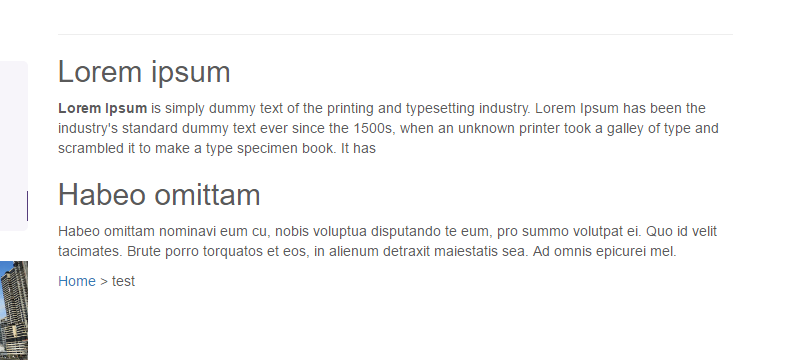
The result in editmode should looks like to following:

And in the frontend of the application:

Advanced Usage
Example for getCurrent()
{% set myBlock = pimcore_block("contentblock", {"reload": true}) %}
{% for i in myBlock.iterator %}
    {% if myBlock.current > 0 %}
        Insert this line only after the first iteration<br />
        <br />
    {% endif %}

    <h2>{{ pimcore_input("subline") }}</h2>
{% endfor %}
IMPORTANT If you want to change content structure dynamically for each index in editmode, then it is required to use
reload=trueconfig.
Using Manual Mode
The manual mode offers you the possibility to deal with block the way you like, this is for example useful with tables:
{% set block = pimcore_block("gridblock", {"manual": true, "limit": 6}).start() %}
<table>
    <tr>
        {% for b in block.iterator %}
            {% do block.blockConstruct() %}
              <td customAttribute="{{ pimcore_input("myInput").getData() }}">
                    {% do block.blockStart() %}
                        <div style="width:200px; height:200px;border:1px solid black;">
                            {{ pimcore_input("myInput") }}
                        </div>
                    {% do block.blockEnd() %}
                </td>
            {% do block.blockDestruct() %}
        {% endfor %}
    </tr>
</table>
{% do block.end() %}
Using Manual Mode with custom button position
If you want to wrap buttons in a div or change the Position.
{% set block = pimcore_block("gridblock", {"manual": true}).start() %}
<table>
    <tr>
        {% for b in block.iterator %}
            {% do block.blockConstruct() %}
                <td customAttribute="{{ pimcore_input("myInput").data }}">
                    {% do block.blockStart(false) %}
                        <div style="background-color: #fc0; margin-bottom: 10px; padding: 5px; border: 1px solid black;">
                            {% do block.blockControls() %}
                        </div>
                        <div style="width:200px; height:200px;border:1px solid black;">
                            {{ pimcore_input("myInput") }}
                        </div>
                    {% do block.blockEnd() %}
                </td>
            {% do block.blockDestruct() %}
        {% endfor %}
    </tr>
</table>
{% do block.end() %}
Using Manual Mode with additional css class for element in editmode
{% set block = pimcore_block("gridblock", {"manual": true}).start() %}
<div>
    {% for b in block.iterator %}
        {% do block.blockConstruct() %}
            {% do block.blockStart(true, false, "my-additional-class") %}
                Add additional class 'my-addional-class' to editmode-div
            {% do block.blockEnd() %}
        {% do block.blockDestruct() %}
    {% endfor %}
</div>
{% do block.end() %}
Accessing Data Within a Block Element
Bricks and structure refer to the CMS demo (content/default template).
{# load document #}
{% set document = pimcore_document_by_path('/en/More-Stuff/Developers-Corner/Galleries') %}

{# get the first picture from the first "gallery-carousel" brick #}
{% set image = document.getEditable('content').getElement('gallery-single-images')[5].getBlock('gallery').getElements()[0].getImage('image') %}

{{ dump(document.getEditable('content').getElement('gallery-single-images')) }}
{{ dump(image.getSrc()) }}